
Massive or batch or bulk minting is the process to create multiple items on the same transaction, this facilitates the process of large collections with thousands of items.
Batch or massive minting is only available for Yuzu and Ikasumi Smart Contracts
Batch Minting Tutorial
Create a collection and run a batch mint process, full tutorial
Batch Minting Step by Step
You can use the Batch Mint NFTs wizard available from:
Go to the wp-admin site
Click on "Smart Contracts Wizard" - "Batch Mint NFTs"
And also available on: "NFT" - "Batch Mint NFTs"
Steps
In general the process to do a batch minting process is the following
Prepare a CSV file with all the collection information
Create a batch mint compatible smart contract (like Yuzu)
Run the Batch Mint NFTs process. This process consists of four steps
Load the CSV file
Save Media files
Create NFT items on the database
Mint NFT items on the blockchain
Let's start with the CSV file configuration
The CSV file
The CSV file should contain all the data for your NFT creation, this will feed the wizard and it will automatically create and mint all NFTs using the information contained in the CSV file.
The structure of the CSV file is:
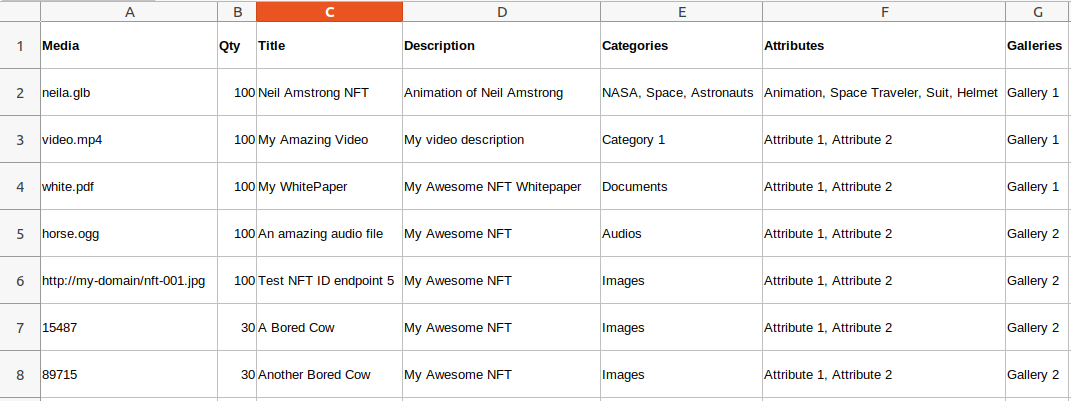
Column 1
The source for the media file. There are different ways to load your media files
OPTION 1: Store media on your server
For this you need to do the following
Create a folder named "wpsc" inside your uploads WordPress folder
For Example:
[your-wordpress-path]/wp-content/uploads/wpsc
Upload all your file to this folder
Then, the first column of your CSV file will have the file name of the media stores on this folder
See the four first lines of the example provided:
neila.glb;...
video.mp4;...
white.pdf;...
Do not include the path to the file, you just need to write the file name
OPTION 2: Specify the URL of the media file
It works pretty much the same as the previous option, but in this case you can upload your media files to a third-party server and specify the URL of each file in the CSV.
For example:
http://my-domain/nft-001.jpg
OPTION 3: Specify the WordPress Gallery Image ID
In the case that your media files are already loaded into the WordPress gallery you can use the atachment ID of your media files.
For example:
15487;...
89715;...
1548;...
Column 2
The quantity to mint. This is the amount you want to create for the item, in this row.
For example, if you want to create 100 copies for each item it will be:
neila.glb;100;...
video.mp4;100;...
white.pdf;100;...
Column 3
The title of the NFT
For example
neila.glb;100;Neil Amstrong NFT;...
video.mp4;100;My Amazing Video;...
white.pdf;100;My WhitePaper;...
Column 4
The description of the NFT
For example
neila.glb;100;Neil Amstrong NFT;Animation of Neil Amstrong;...
video.mp4;100;My Amazing Video;My video description;...
white.pdf;100;My WhitePaper;My Awesome NFT Whitepaper;...
Column 5
The taxonomies comma separated list
For example
neila.glb;100;Neil Amstrong NFT;Animation of Neil Amstrong;NASA, Space, Astronauts;...
video.mp4;100;My Amazing Video;My video description;;Category 1;...
white.pdf;100;My WhitePaper;My Awesome NFT Whitepaper;Documents;...
Column 6
The attributes comma separated list. For example:
neila.glb;100;Neil Amstrong NFT;Animation of Neil Amstrong;NASA, Space, Astronauts;Animation, Space Traveler, Suit, Helmet video.mp4;100;My Amazing Video;My video description;Category 1;Attribute 1, Attribute 2 white.pdf;100;My WhitePaper;My Awesome NFT Whitepaper;Documents;Attribute 1, Attribute 2 horse.ogg;100;An amazing audio file;My Awesome NFT ;Audios;Attribute 1, Attribute 2 http://my-domain/nft-001.jpg;100;Test NFT ID endpoint 5;My Awesome NFT ;Images;Attribute 1, Attribute 2 15487;30;A Bored Cow;My Awesome NFT ;Images;Attribute 1, Attribute 2 89715;30;Another Bored Cow;My Awesome NFT ;Images;Attribute 1, Attribute 2
Column 7
The galleries comma separated list. The final CSV will look similar to this:
neila.glb;100;Neil Amstrong NFT;Animation of Neil Amstrong;NASA, Space, Astronauts;Animation, Space Traveler, Suit, Helmet;Gallery 1 video.mp4;100;My Amazing Video;My video description;Category 1;Attribute 1, Attribute 2;Gallery 1 white.pdf;100;My WhitePaper;My Awesome NFT Whitepaper;Documents;Attribute 1, Attribute 2;Gallery 1 horse.ogg;100;An amazing audio file;My Awesome NFT ;Audios;Attribute 1, Attribute 2;Gallery 2 http://my-domain/nft-001.jpg;100;Test NFT ID endpoint 5;My Awesome NFT ;Images;Attribute 1, Attribute 2;Gallery 2 15487;30;A Bored Cow;My Awesome NFT ;Images;Attribute 1, Attribute 2;Gallery 2 89715;30;Another Bored Cow;My Awesome NFT ;Images;Attribute 1, Attribute 2;Gallery 2
About the CSV format
- Do not include the title row in the CSV file
- Do not wrap with quote the field values
- The standard separators are
- Semi-colon for fiels
- Comma for attributes and taxonomies separator
Run the Batch Mint Process
As said before the Batch Mint process consists of four steps:
Load the CSV file
Save Media files
Create NFT items on the database
Mint NFT items on the blockchain
Let's check them one by one
Step 1: Load the CSV File
In this step you will load your CSV file to a selected collection
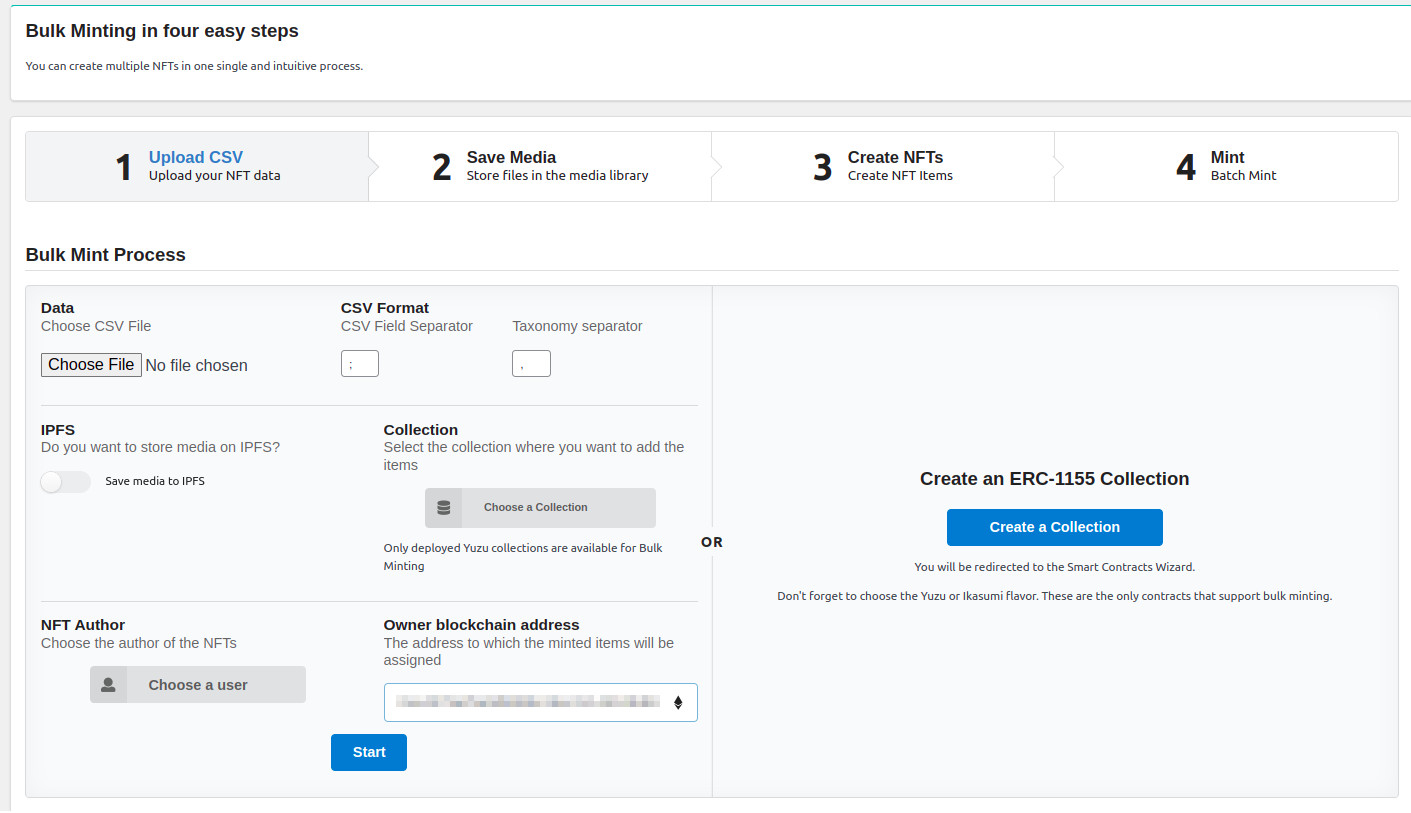
Choose the CSV file
Specify the separator characters
If your CSV file has different characters for separator, you can specify them here
Choose the ERC-1155 collection
it has to be Yuzu or an Ikazumi collection
Save media to IPFS
Choose this if you want to store your media files into IPFS
NFT Author
Choose the author / user that will appear as the creator of the post
Owner Blockchain Address
Enter the account that will own the NFT Items minted
Click "Start" to continue
Step 2: Save Media Files
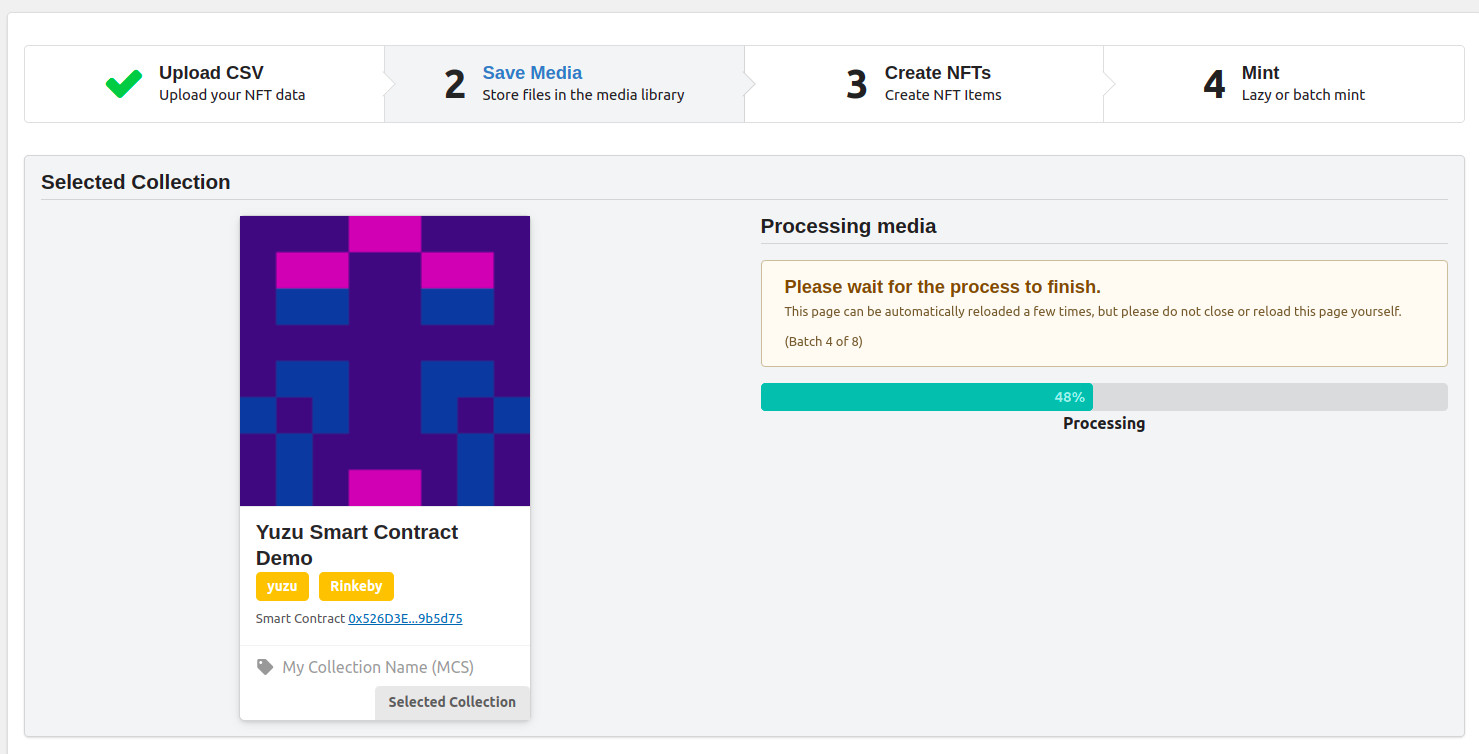
Then the wizard will automatically load all the images to your WordPress uploads folder
The page may automatically reload several times, please be patient, do not reload the page yourself and do not close the browser. Wait for the process to finish.
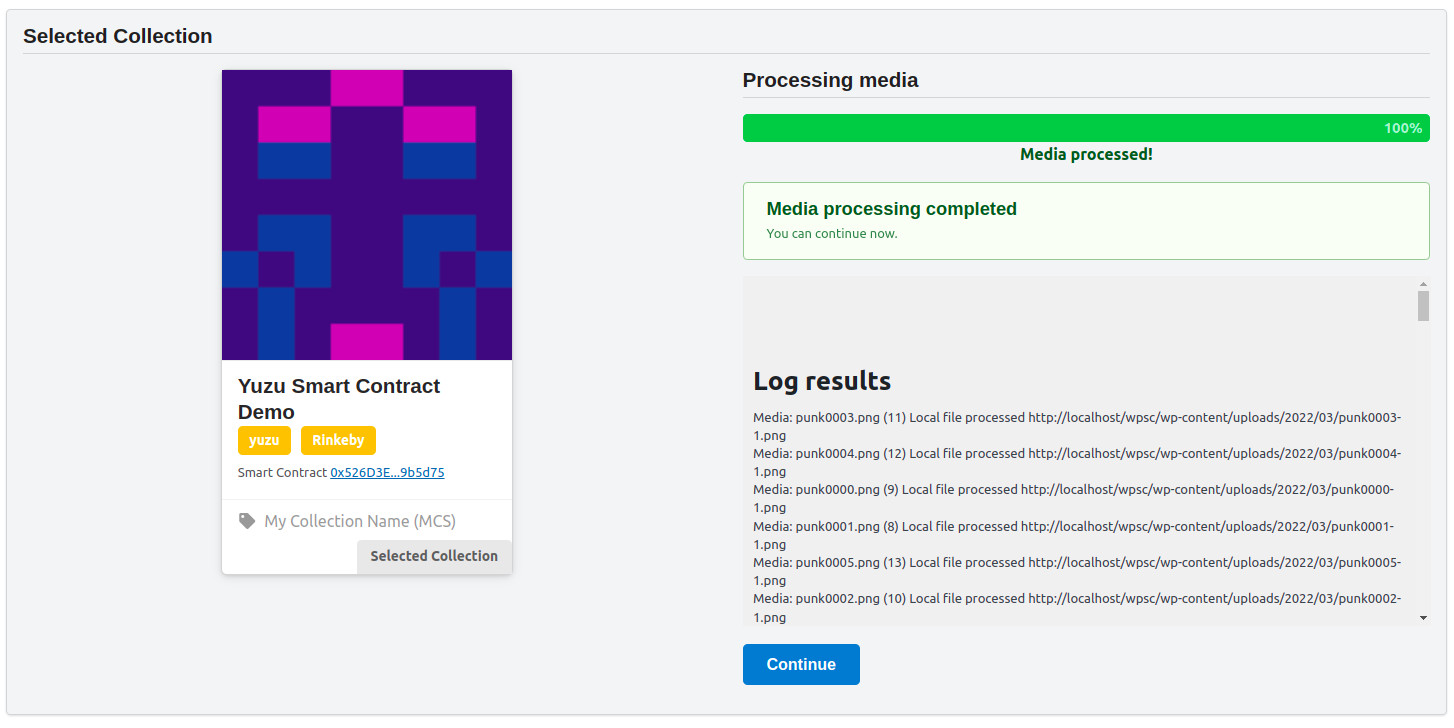
When finished, the log with all the results will be displayed, look for the errors in this log, they are highlighted in red, if an error occurred with any media file, you can fix the media on your side and restart the process again with the CSV file.
When successful, continue to the next step.
Step 3: Create NFTs in the database
In this step the NFTs items will be created in the database, storing the name, description, media link, attributes and categories.
Also the NFT json endpoint will be generated automatically in this step
Just as before the page may automatically reload several times, please be patient, do not reload the page yourself and do not close the browser. Wait for the process to finish.
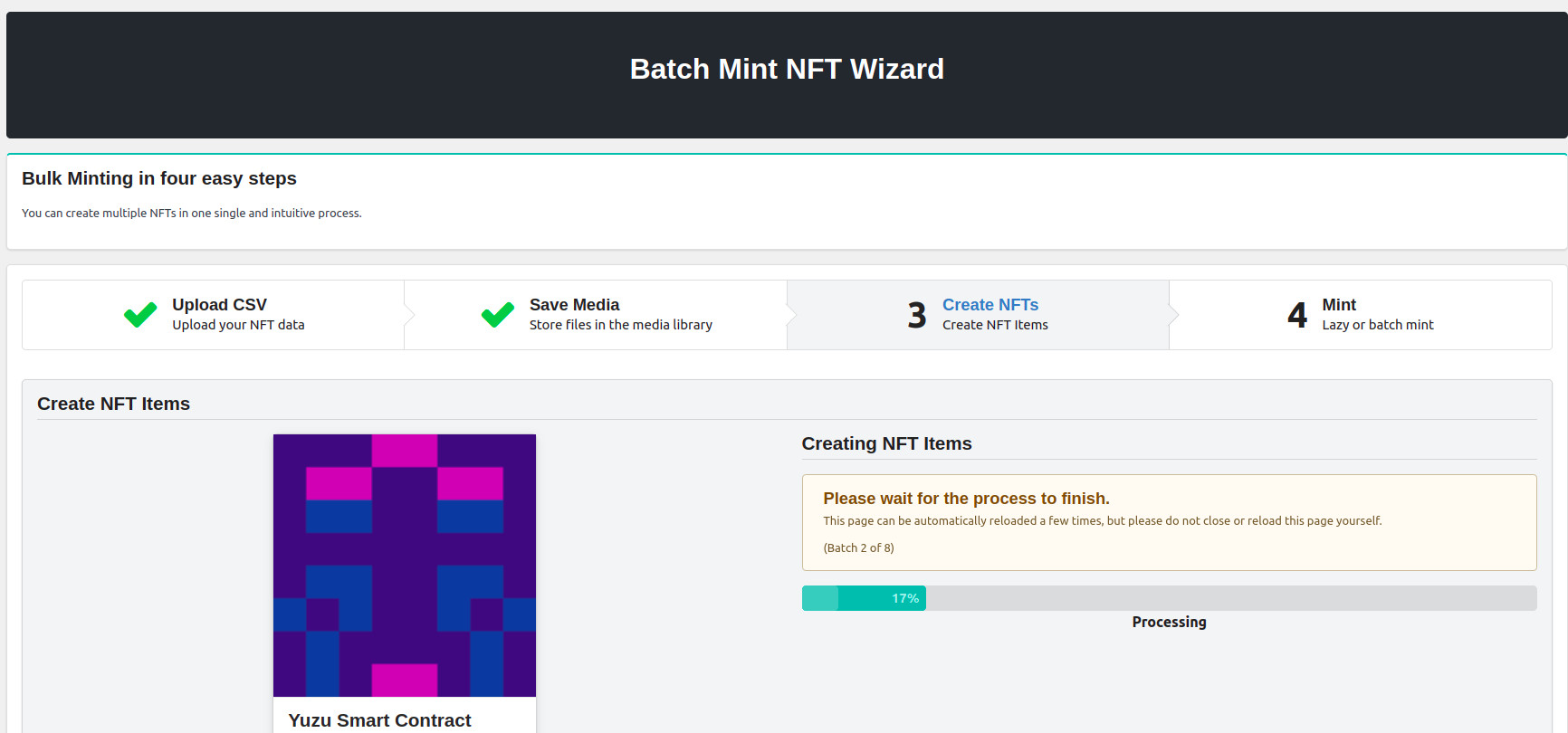
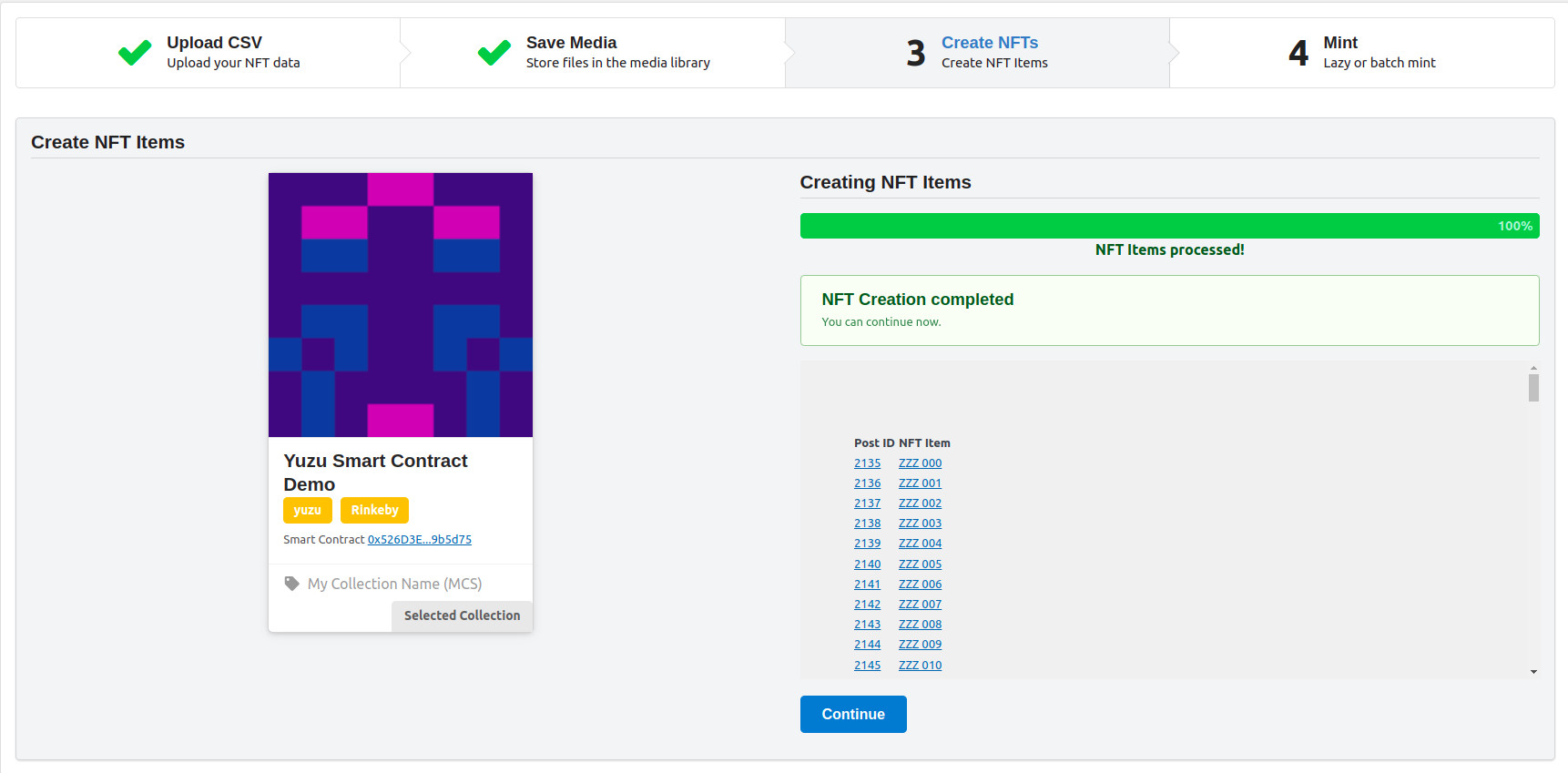
When finished, you will see all the post created, with two columns:
Post ID
The first colum will have the post ID with a link to the respective NFT
Title
The second colum will have the post name, also with a link to the respective NFT
Check for errors or warnings in the log
When successful, continue to the next step.
Step 4: Mint the NFTs
Now, in the last step we are going to mint the items into the Blockchain
This is a process that has to be done several times manually pressing the "Mint Batch 1/x" button, confirming the Metamask transaction and repeat the process until is over
The wizard process around a hundred items on every mint, this is because the amount of data that can be sent to a Blockchain transaction is limited. But minting a hundred items at a time is far more easier than minting them one by one.
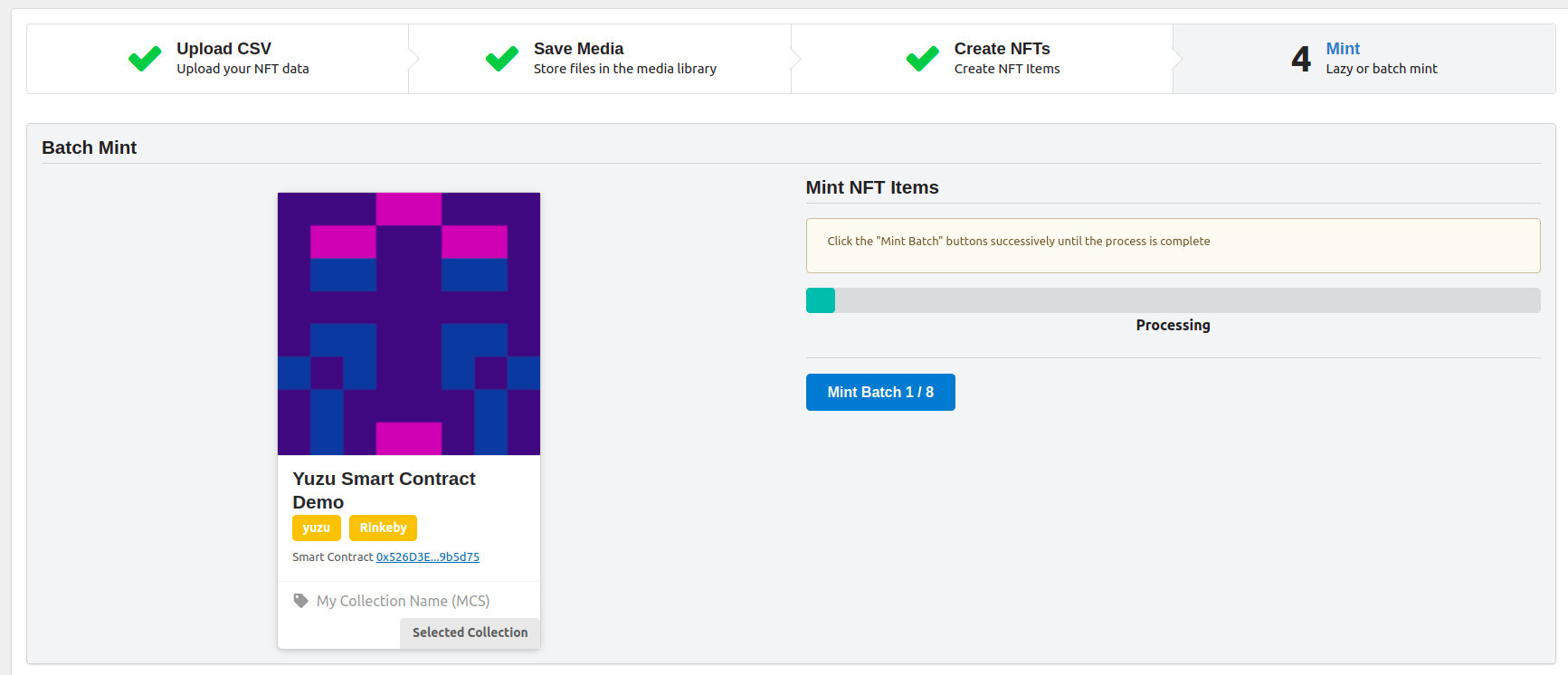
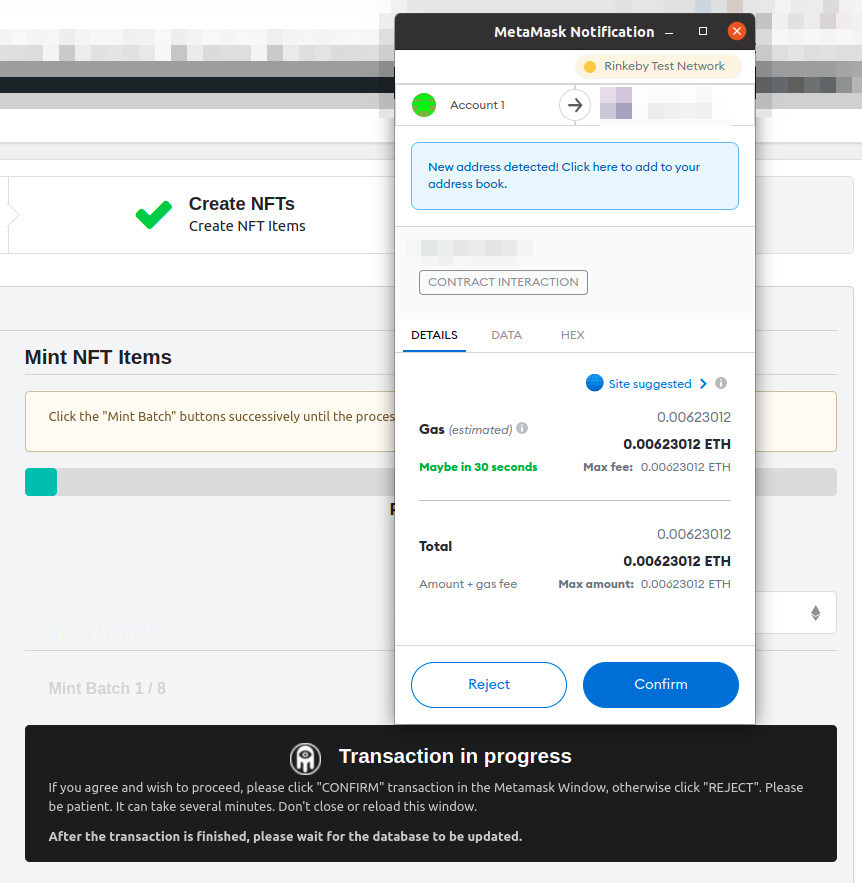
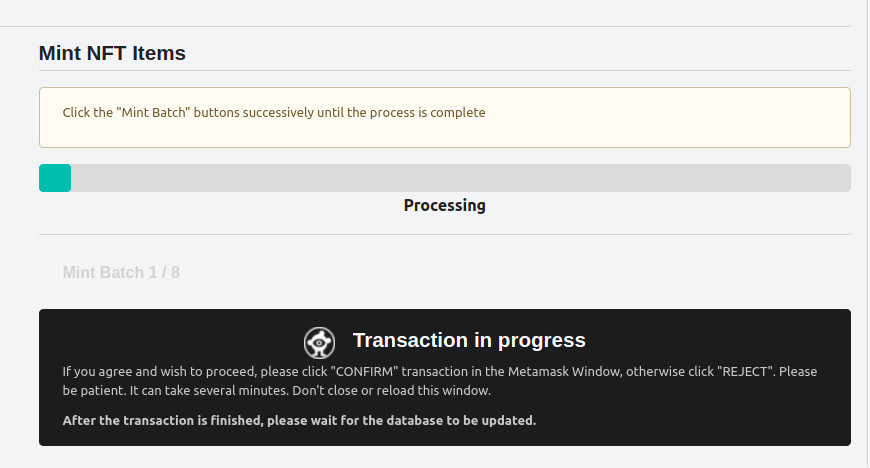
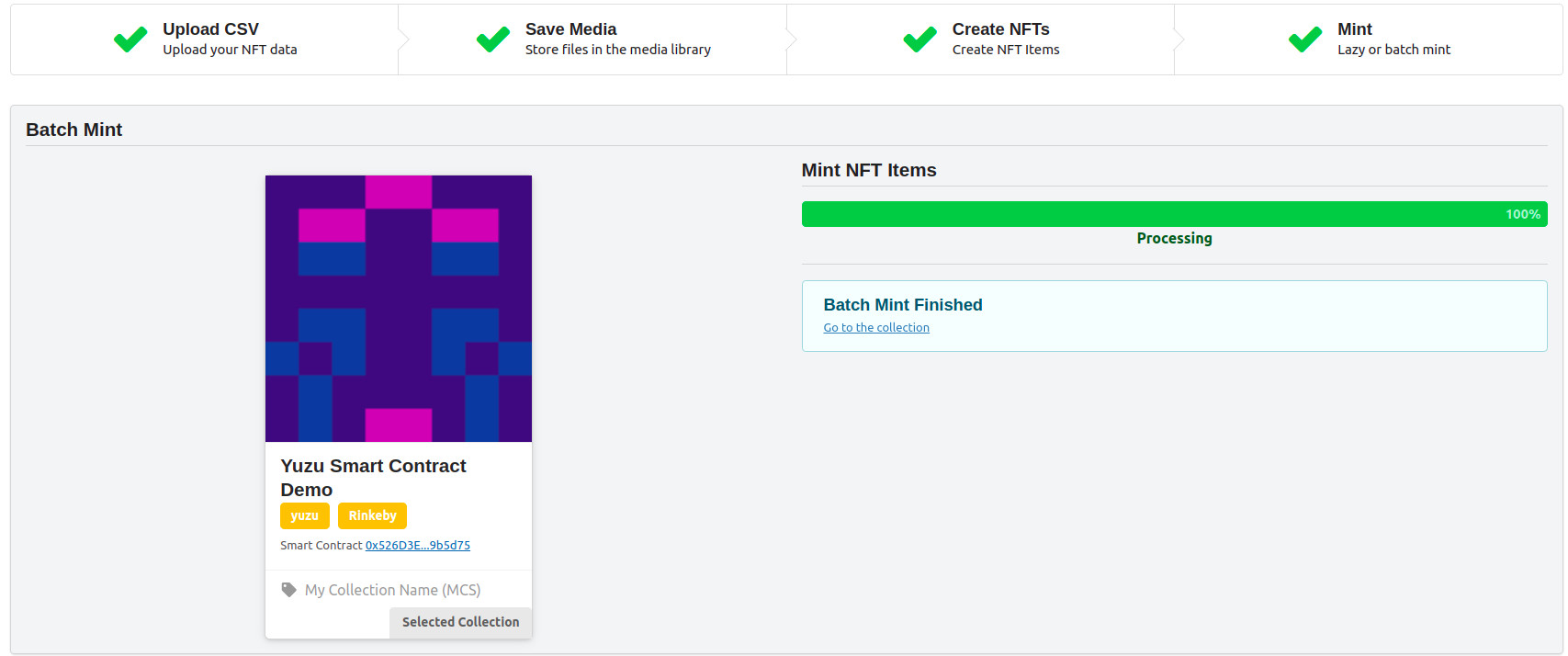
When the transaction is finished, you will see the next mint button available, repeat this process until all items are minted.
When finished you can go to the collection clicking on the link provided
 Mint NFTs IPFS