
Remember to enable galleries in your collection
To use the galleries feature it has to be enabled in your collection.
Galleries are not enabled by default, to learn how to enable them, visit the Manage Galleries section.
Add NFT Galleries
The first step is to create your own Galleries, for that do the following:
Add galleries, just like terms, in the «NFT» - «Galleries» section
Enter the name of the gallery you want, and click on «Add New Gallery»
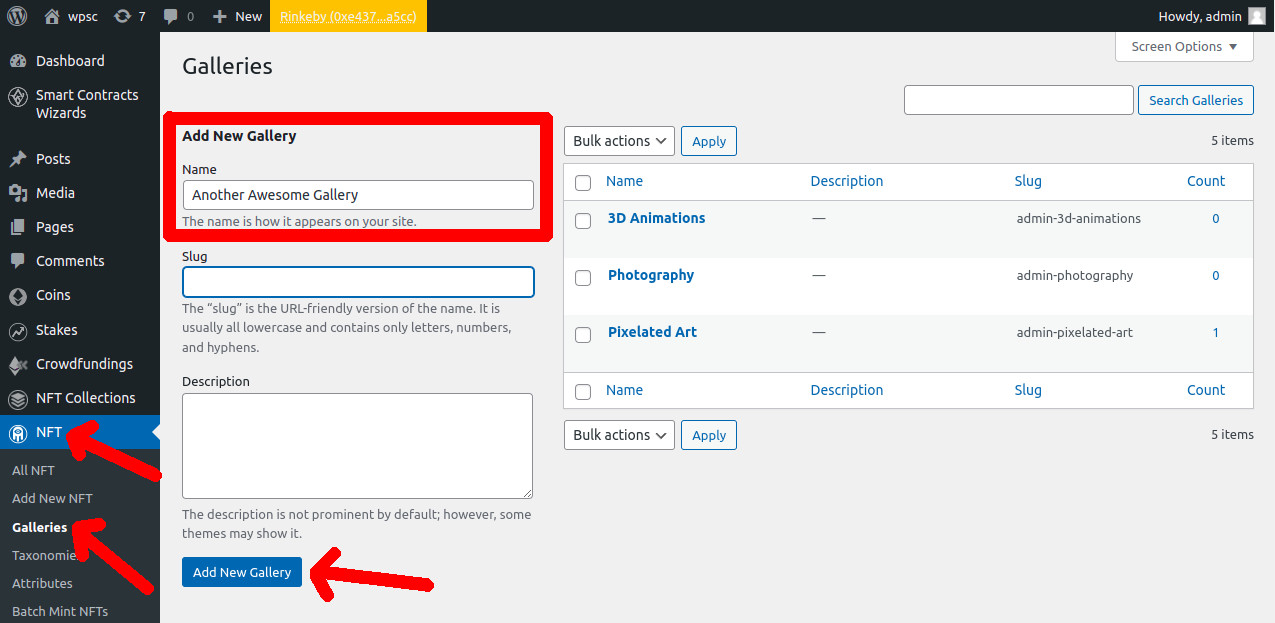
Add galleries, just like terms, in the «NFT» - «Galleries» section
Enter the name of the gallery you want, and click on «Add New Gallery»
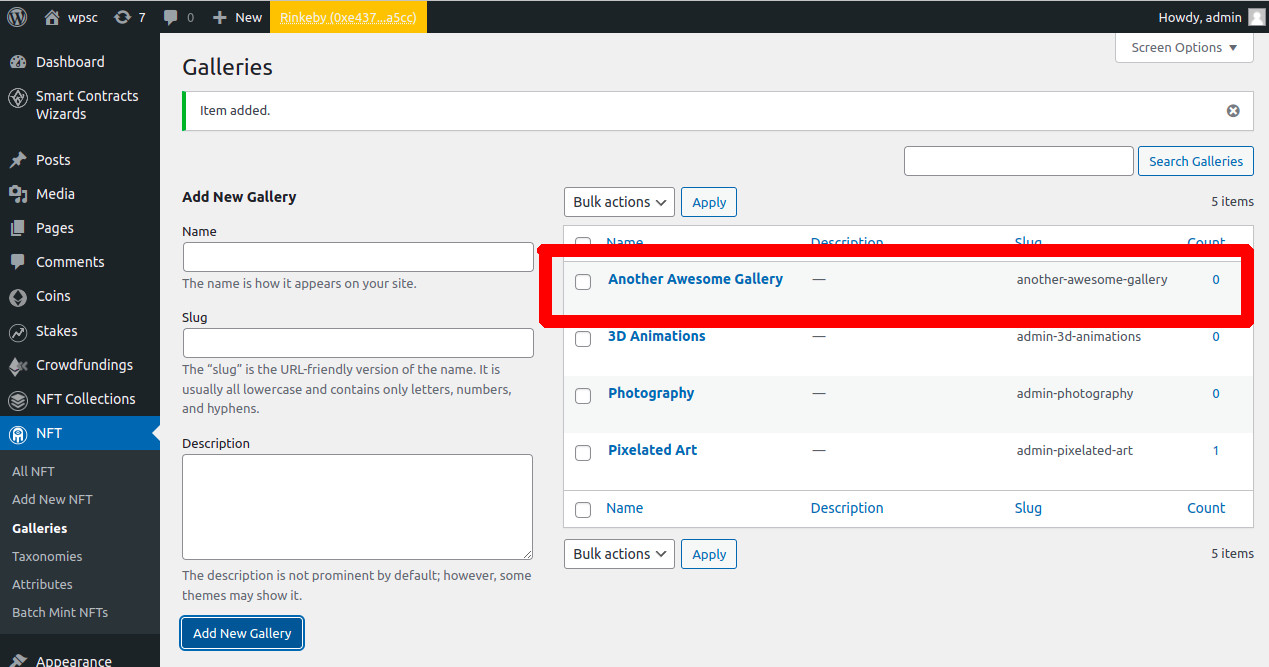
Assign Galleries to Users
Now you can add galleries to your existing users
Select the user you want to add the gallery to
Go to «All Users» and click «Edit» on the user you want
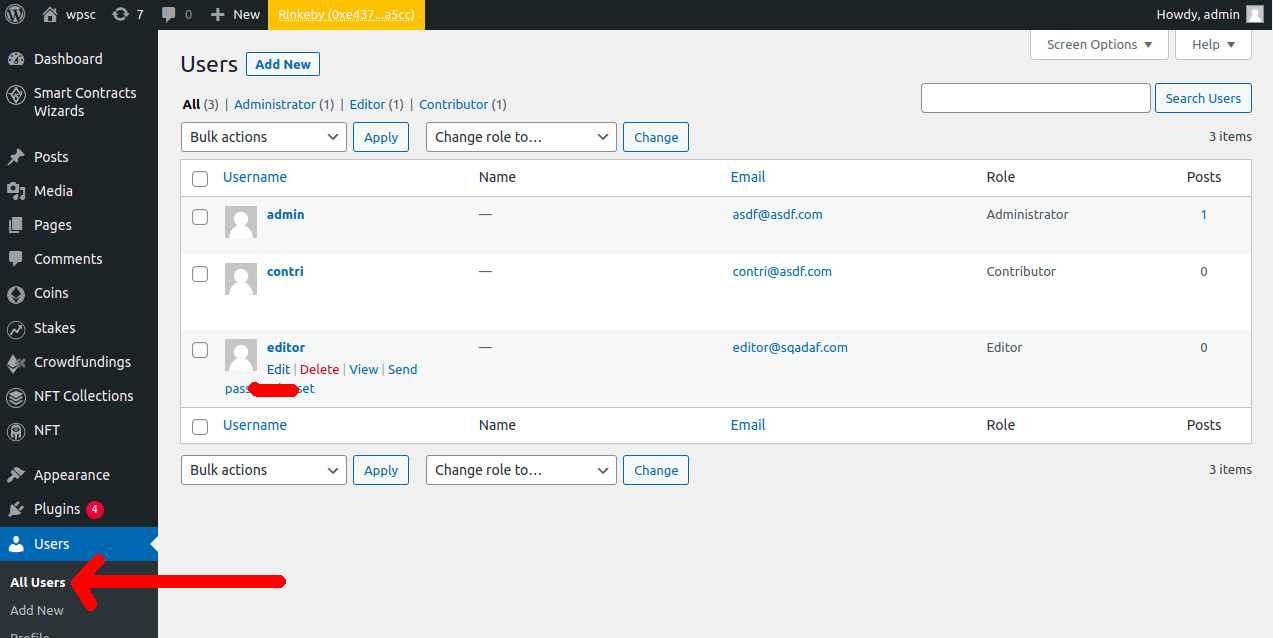
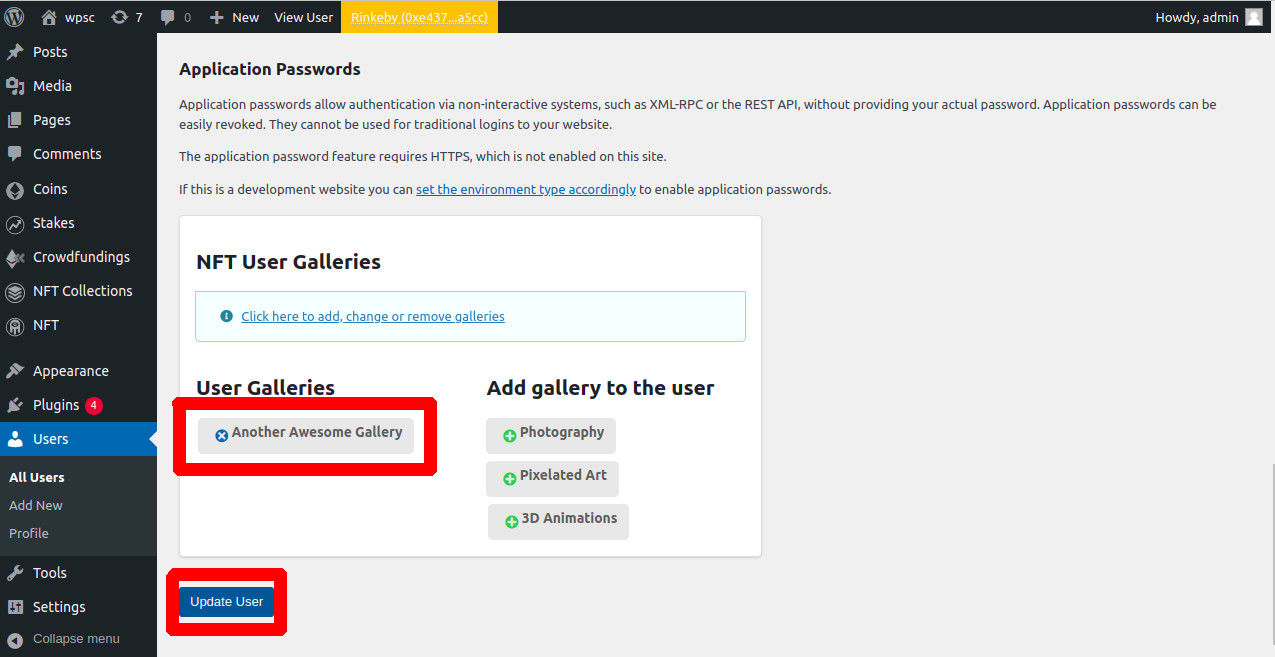
Add to the user the gallery you want
Click on the green plus icon on the galleries on the right side to add one or more galleries to the user
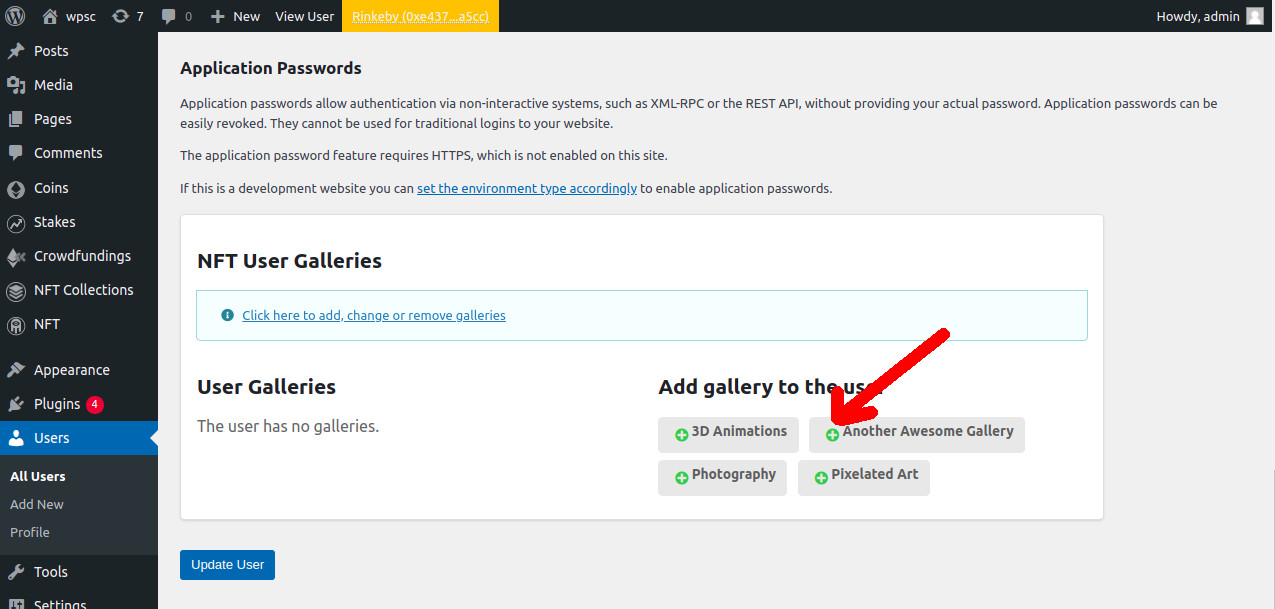
Update the user
Assign the Galleries to the NFT Items
Now you can assign galleries to items
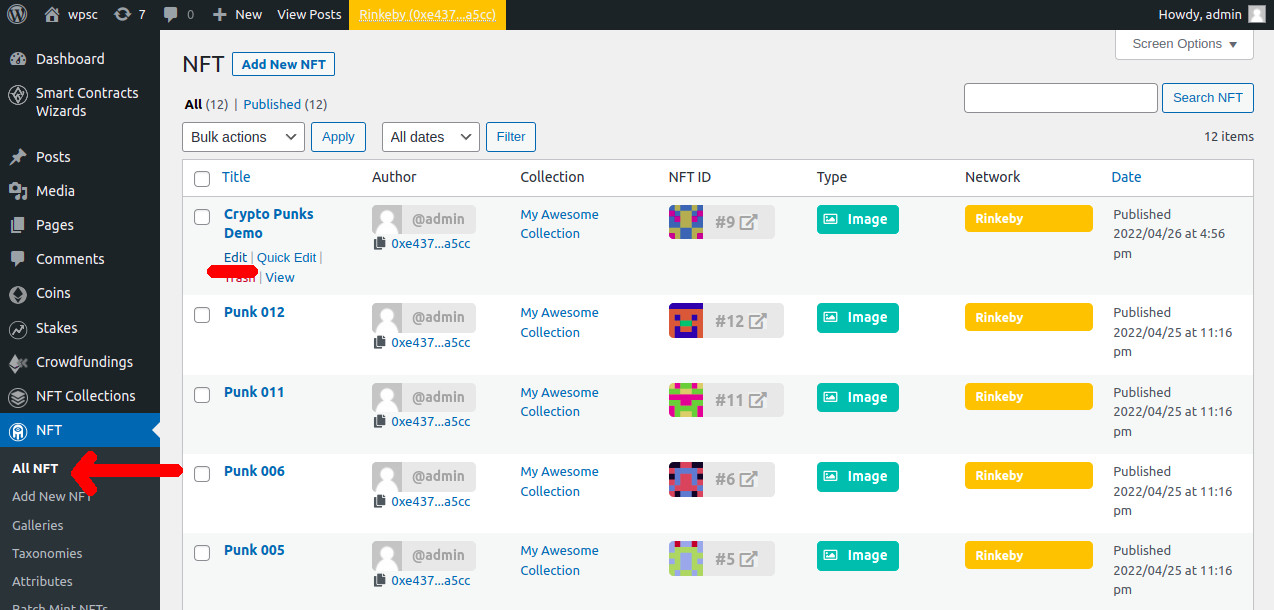
Edit the NFT Item
Go to «All NFT» section and click «Edit» on the desired item
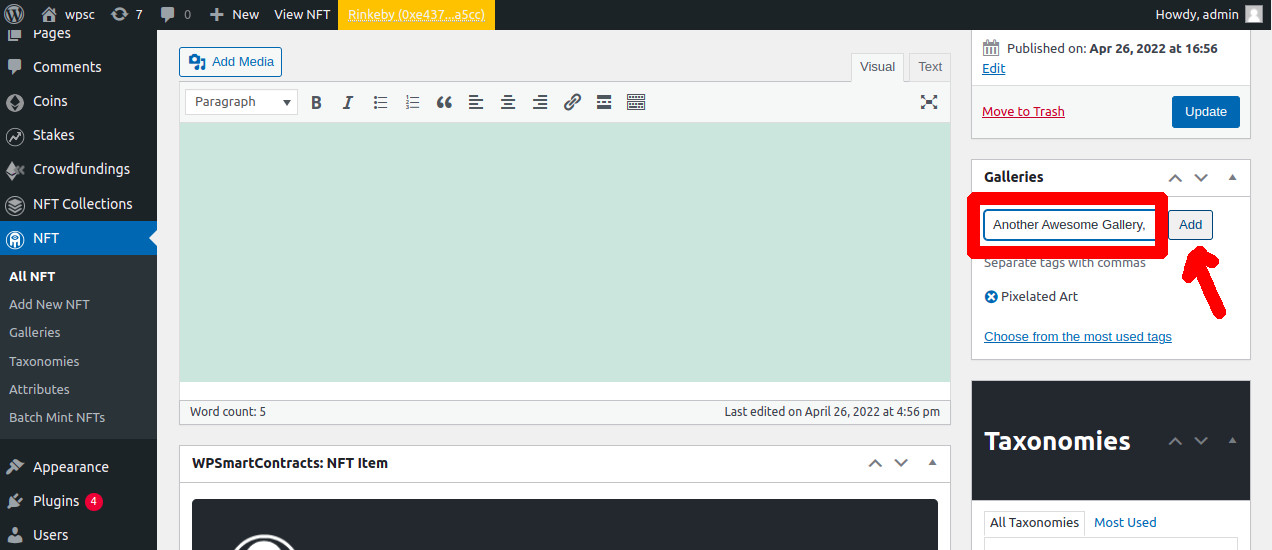
Assign the galleries
Enter the gallery name, one by one, in the «Galleries» section and click «Add»
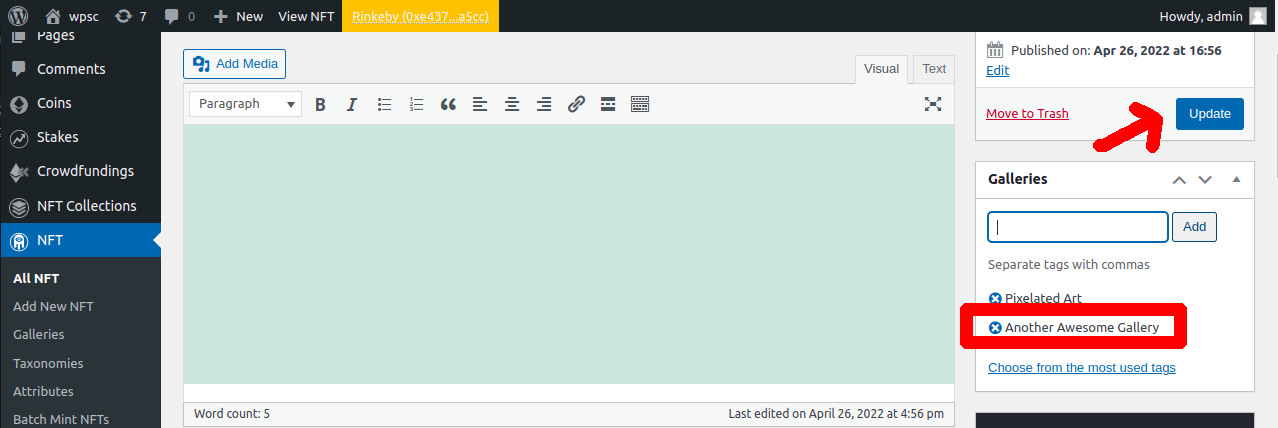
When done, update the NFT
Now you can see the galleries in the frontend view
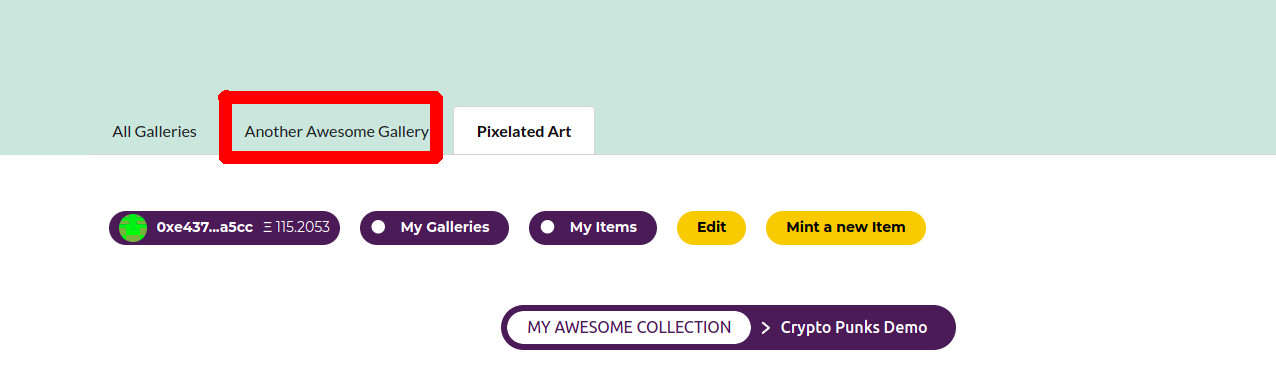 Galleries in the Frontend Galleries in the Batch Mint Process