
Create an Ikasumi ERC-1155 Advanced NFT Marketplace
Use the Smart Contract Wizard
If you are not sure what flavor or network is the best for you, use the WP Smart Contracts wizard
NFT Collection data
The first step is to create a NFT is to fill the basic data:
Login into your WordPress install.
Login into Metamask
Click “NFT Collection” - “Add new”
Choose the flavor: ”Ikasumi”
Fill in the following fields:
Title
The title of your collection
Description
The full description of your NFT collection, you can include images, font styles, etc.
Featured image
Set the featured image for your collection as a regular featured image of a WordPress post
Skin
The skin is how your NFT Marketplace looks
This setting is located in the WP Smart Contracts setting
Smart Contracts Options
This section is the Smart Contract definition data
Symbol and Name
Just like ERC-20 has a symbol and names, ERC-1155 tokens also have a symbol and a name. This symbol and name is a one-time setting, cannot be changed after deployment.
Sales commissions
Percentage commission, ranging from 0 to 100. Commission that you are going to get from Sales. 0 means no commission, 100 means 100% of the sale as commission.
Royalty percentage for creators
Percentage royalty, ranging from 0 to 100. Royalties to the creators from resales. 0 means no commission, 100 means 100% of the sale as commission.
Wallet
Ethereum address or EVM compatible wallet address to receive funds. This is the beneficiary account that will receive the Marketplace commissions in the native coin of the blockchain selected
Token for payments
Standard ERC-20 or BEP20 token to be used for payment of sales
Ikasumi Payment Token
Please note that all payments made through the Ikasumi Smart Contract are made in ERC-20 / BEP-20 tokens.
This has to be the 42-character hexadecimal address (like 0x0123456789abcde0123456789abcde0123456789).
Warning!
Are you using a reflection token? If so, you must exclude the NFT contract in your reflection token
You can use any token compatible with the ERC-20 Standard
The payment token can be:
- Your own token
- A wrapped coin token
- Any other token
Using your own token
If you have created your own token, using the WP Smart Contracts or any other tool, you can use it for of payment as long as it is ERC-20 Standard compatible
Disclaimer
WPSmartContracts.com does not endorse or promote any of the following tokens, we display it for technical education and demonstration purposes only. We are not responsible for the accuracy or stability of this information. DO YOUR OWN RESEARCH and neccesary verifications on your side.
Using a wrapped version of the native coin
If you want to use Ether (for Ethereum), BNB (for BSC), Matic (for Polygon), you have to use a wrapped token like:
- WETH on Ethereum
0xc02aaa39b223fe8d0a0e5c4f27ead9083c756cc2
- WBNB on Binance
0xbb4CdB9CBd36B01bD1cBaEBF2De08d9173bc095c
- WMATIC on Polygon
0x0d500b1d8e8ef31e21c99d1db9a6444d3adf1270
Using other tokens
Any token compatible with the standard ERC-20 / BEP-20 can be used as a form of payment.
Any well-known Standard token in the industry, for example
Ethereum Tokens
- ERC20 Tether USD
0xdac17f958d2ee523a2206206994597c13d831ec7
- ERC20 BNB
0xB8c77482e45F1F44dE1745F52C74426C631bDD52
- ERC20 USDC
0xa0b86991c6218b36c1d19d4a2e9eb0ce3606eb48
- ERC20 HEX
0x2b591e99afe9f32eaa6214f7b7629768c40eeb39
- ERC20 SHIBA INU
0x95aD61b0a150d79219dCF64E1E6Cc01f0B64C4cE
- Click to see the most popular Ethereum Tokens
Binance Smart Chain Tokens
- BEP-20 Binance PEG Ethereum Token
0x2170ed0880ac9a755fd29b2688956bd959f933f8
- BEP-20 Binance-Peg BSC-USD
0x55d398326f99059ff775485246999027b3197955
- BEP-20 Wrapped BNB
0xbb4CdB9CBd36B01bD1cBaEBF2De08d9173bc095c
- BEP-20 Binance-Peg USDC Coin
0x8ac76a51cc950d9822d68b83fe1ad97b32cd580d
- BEP-20 Binance-Peg XRP Token
0x1d2f0da169ceb9fc7b3144628db156f3f6c60dbe
- Click to see the most popular Binance Smart Chain Tokens
Polygon Chain Tokens
- Wrapped Ether
0x7ceb23fd6bc0add59e62ac25578270cff1b9f619
- Tether USD
0xc2132d05d31c914a87c6611c10748aeb04b58e8f
- Wrapped BNB
0x3BA4c387f786bFEE076A58914F5Bd38d668B42c3
- USD Coin
0x2791bca1f2de4661ed88a30c99a7a9449aa84174
- Click to see the most popular Polygon Chain Tokens
Keep in mind that you need to use a token existing in the Blockchain you choose. For example, you cannot use on the testnet a token that exists on the mainnet. If you are using a testnet we recommend to create your own token using the plugin.
Options
Who can mint?
This is a smart contract setup. If anyone can mint it means that anyone can create a NFT item on your Marketplace. Otherwise, only the contract owner can mint new NFT items.
What user roles can create NFT items on your Marketplace?
This is a WordPress level configuration. Choose the WP user roles authorized to create NFT elements, both in the Backend and the Frontend of your site.
All users can edit all NFTs
This is a frontend setting to allow all creators to modify the data for all items. By default, NFT items can be modified by their authors, but if you want all authors to be able to modify all NFT elements, activate this option. (Not recommended)
Show OpenSea link
If your contract is deployed to Ethereum mainnet or Polygon mainnet, an auto-generated link to OpenSea will be displayed in the item view
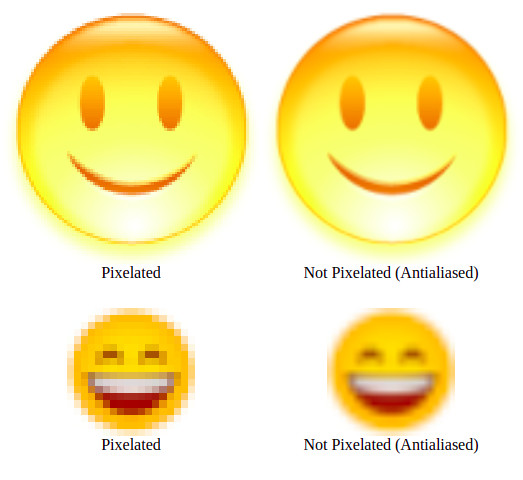
Use pixelated images
By default, each browser will render images using aliasing to a scaled image in order to prevent distortion. Check this if you want the image to preserve its original pixelated form. This is usefull if your items are icon-like images
Enable Sub-Collections?
By default, galleries are not enabled, you can enabled them selecting one of two choices
Learn more about GalleriesDisabled
No galleries will be used in your collection
Enabled as Tabs
Your galleries will be show on the top as "Tabs"
Enabled as a dropdown list
Your galleries will be show on the top as a dropdown list
NFT Collection Deploy
Then you can deploy your contract
Select the network
Expand All networks
In the bottom left section of the screen you can click on "Expand All" in the network section to see all blockchains available to deploy the selected flavor. Available networks vary from one flavor to another.
Filter networks
In the bottom section you can click on checkboxes to filter your networks results by mainnet, testnets, Ethereum Bitcoin, etc.
Switch to desired network
Click on "Switch" on the desired networks to add this network to your Metamask and switch to it
Approve the operations in Metamask
Deploy with the native token of the selected network
Deployment and gas fees are paid using the native coin of the selected network, meaning that if you chose Ethereum you will pay in Ether, if you chose Polygon you will pay in Matic, etc. You will see the price in the native coin and the estimated equivalent in US Dollars in the top left of the networks section.
Click on the green “Deploy” button.
Read carefully the terms and conditions
Basically you need to know what you are doing and to know that this actions is irreversible.
If you agree and you know what you are doing click on both checkboxes
Click “Yes, please proceed”
Click “Confirm” in Metamask and wait for your transaction to finish.
Then your post will be updated showing the new Smart Contract information.

 Ikasumi Batch Minting