
Standard Non Fungible Token (NFT)
ERC-721 or NFT tokens is a standard for non-fungible tokens (NFT) or deeds. NFT are useful to represent digital or physical assets that cannot be divided
Each NFT Collection Smart Contract you create represents:
A Standard ERC-721
Standard NFT based on OpenZeppelin implementation
A container of NFT items
Each minted NFT item is stored inside the NFT Collection
Your NFT Collection token is fully compatible with the ERC-721 Standard
Features
Ownable
Only one account can own a NFT at a time
Transferable
Your token can be transferred directly or by approval
Metadata
Your token smart contract is identified by a symbol and a name
Token URI
Each minted NFT has a single tokenURI, which is a URL that stores the media and all the attributes of its unique NFT.
Enumerable
The smart contract counts and list valid NFTs assigned to an owner
Mintable
Authorized users can mint new NFTs
Burn
Owners can destroy their items
Create a Mochi NFT Collection
Use the Smart Contract Wizard
If you are not sure what flavor or network is the best for you, use the WP Smart Contracts wizard
Screen cast
Deploy your Mochi NFT Collection
NFT Collection data
The first step is to create a NFT is to fill the basic data:
Login into your WordPress install.
Login into Metamask
Click “NFT Collection” - “Add new”
Choose the flavor: ”Mochi”
Fill in the following fields:
Title
The title of your collection
Description
The full description of your NFT collection, you can include images, font styles, etc.
Featured image
Set the featured image for your collection as a regular featured image of a WordPress post
Skin
The skin is how your NFT Marketplace looks
This setting is located in the WP Smart Contracts setting
Smart Contracts Options
This section is the Smart Contract definition data
Symbol and Name
Just like ERC-20 has a symbol and names, ERC-721 tokens also have a symbol and a name. This symbol and name is a one-time setting, cannot be changed after deployment.
Now you can deploy to your desired network
Options
Who can mint?
This is a smart contract setup. If anyone can mint it means that anyone can create a NFT item on your Marketplace. Otherwise, only the contract owner can mint new NFT items.
What user roles can create NFT items on your Marketplace?
This is a WordPress level configuration. Choose the WP user roles authorized to create NFT elements, both in the Backend and the Frontend of your site.
All users can edit all NFTs
This is a frontend setting to allow all creators to modify the data for all items. By default, NFT items can be modified by their authors, but if you want all authors to be able to modify all NFT elements, activate this option. (Not recommended)
Show OpenSea link
If your contract is deployed to Ethereum mainnet or Polygon mainnet, an auto-generated link to OpenSea will be displayed in the item view
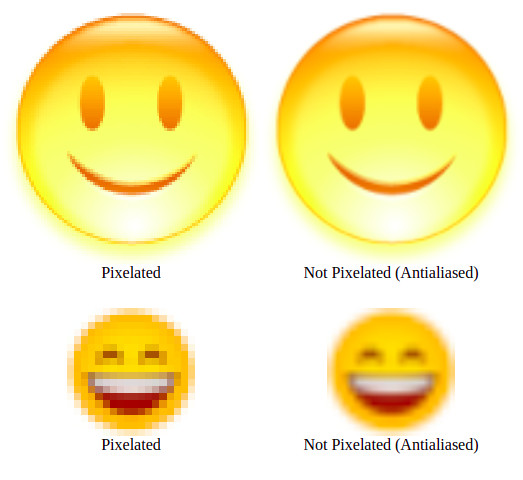
Use pixelated images
By default, each browser will render images using aliasing to a scaled image in order to prevent distortion. Check this if you want the image to preserve its original pixelated form. This is usefull if your items are icon-like images
Enable Sub-Collections?
By default, galleries are not enabled, you can enabled them selecting one of two choices
Learn more about GalleriesDisabled
No galleries will be used in your collection
Enabled as Tabs
Your galleries will be show on the top as "Tabs"
Enabled as a dropdown list
Your galleries will be show on the top as a dropdown list
Deploy Mochi
Then you can deploy your contract
Select the network
Expand All networks
In the bottom left section of the screen you can click on "Expand All" in the network section to see all blockchains available to deploy the selected flavor. Available networks vary from one flavor to another.
Filter networks
In the bottom section you can click on checkboxes to filter your networks results by mainnet, testnets, Ethereum Bitcoin, etc.
Switch to desired network
Click on "Switch" on the desired networks to add this network to your Metamask and switch to it
Approve the operations in Metamask
Deploy with the native token of the selected network
Deployment and gas fees are paid using the native coin of the selected network, meaning that if you chose Ethereum you will pay in Ether, if you chose Polygon you will pay in Matic, etc. You will see the price in the native coin and the estimated equivalent in US Dollars in the top left of the networks section.
Click on the green “Deploy” button.
Read carefully the terms and conditions
Basically you need to know what you are doing and to know that this actions is irreversible.
If you agree and you know what you are doing click on both checkboxes
Click “Yes, please proceed”
Click “Confirm” in Metamask and wait for your transaction to finish.
Then your post will be updated showing the new Smart Contract information.
 ICO Shortcode Matcha